The Queue and your team’s emails
When a patient needs your team, Terva puts it in the Queue and emails your practice. Here’s what you’ll get, when it arrives, and what to do with it.
Not working? See what to doOpen the Queue
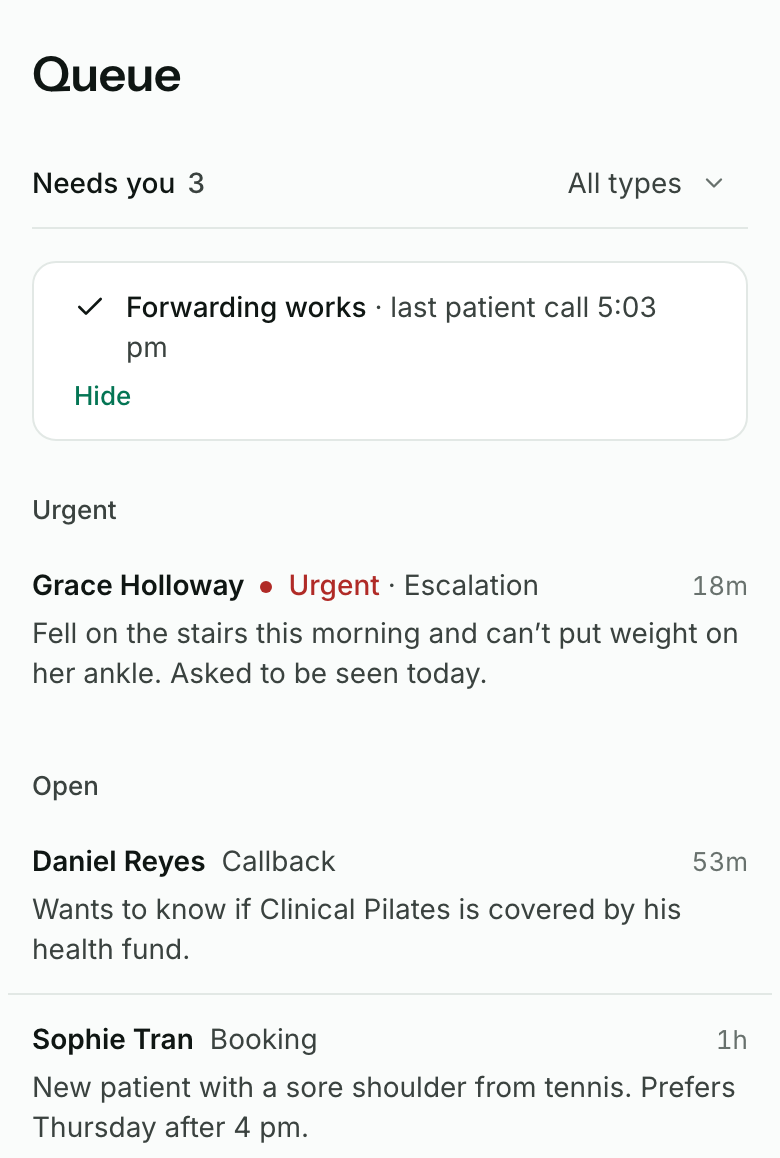
Queue is the first page in your dashboard. Each item is a patient to call back, or something that can’t wait. Urgent items sit at the top, then Open.
Each item shows the patient’s name, the kind of request, such as Callback or Booking, and a short summary. Escalation means Terva marked the call urgent. Use the All types menu to show one kind.
Call the patient back
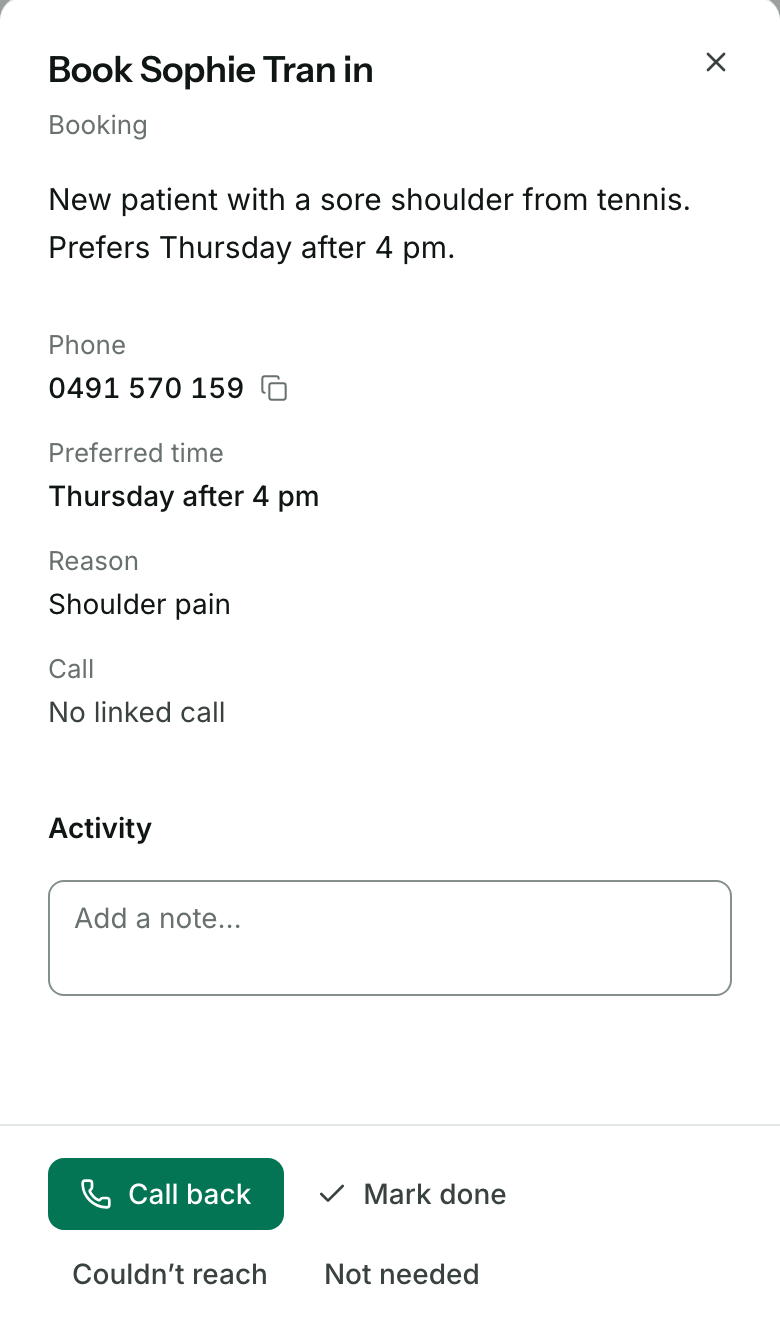
Open an item to see the patient’s number, their preferred time and what they asked for. Press Call back to ring them, then Mark done.
No answer? Press Couldn’t reach: the item stays open and the attempt is logged under Activity. If it’s already sorted, press Not needed. Notes you add under Activity are there for the rest of your team.
Read your team’s emails
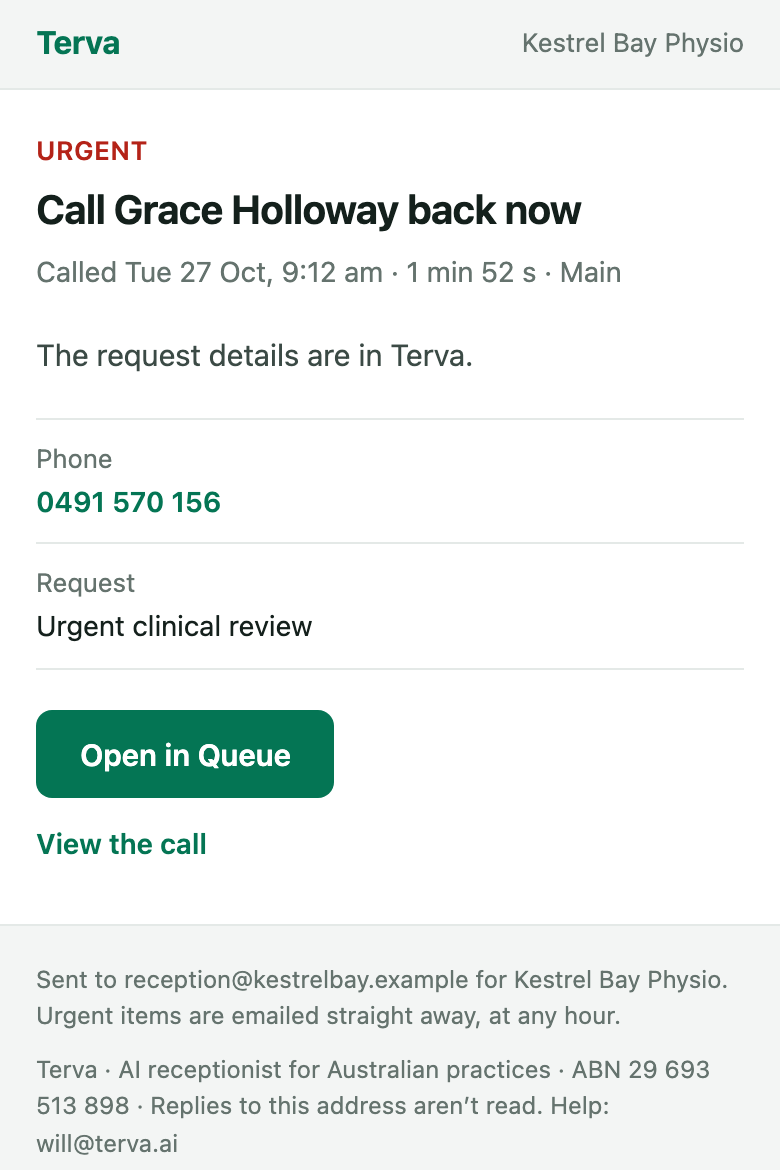
Terva emails the address under Callback requests on the Practice page. An email about a request has the patient’s name, their number and the kind of request, with Open in Queue.
What the patient said stays in Terva, not in the email. Open the item to read it.
Know when emails arrive
For your first 14 days after Terva starts answering, you get an email after every call, so you can see how it’s going. A call that needs nothing from your team has View call instead. After that:
Urgent items are emailed straight away, at any hour.
Everything else is emailed within about 10 minutes, grouped when several arrive together, and only during your opening hours. An item your team handles first isn’t emailed.


What you’ll see when it works
- New requests show in the Queue with the patient’s name and what they need.
- Your inbox gets an email about each request, with Open in Queue.
- Urgent emails arrive straight away, with Urgent at the start of the subject.
- An item you Mark done leaves the Queue.
If it doesn’t
- No emails arrive
- Check your spam folder, and the address under Callback requests on the Practice page. Everything is still in the Queue.
- You want emails to go to a shared inbox
- Emails go to your sign-in email to start. Email will@terva.ai with the inbox your team reads, like reception@, and we’ll change it. There’s no setting for it in the dashboard yet.
- The Practice page says emails are bouncing
- Requests stay in the Queue until it’s fixed. Email will@terva.ai with a working address. While callback emails bounce, Terva can’t take calls, so fix it quickly.
- The Queue is empty
- It fills once your practice line forwards to Terva. See Forward your calls.
- You marked an item done by mistake
- Press Undo on the message that appears at the bottom of the screen.
Stuck on a step?
Book a set-up call and we’ll go through it with you.