What Terva knows, and how to change it
Terva answers patients only from your Knowledge and Practice pages. Most of it came from your website when you signed up. Change anything, and Terva uses it as soon as you save.
Not working? See what to doSee what Terva knows
Open Knowledge in your dashboard. Each answer is what patients ask about, then what Terva says.
Most answers came from your website, and you checked them during setup. If a patient asks something that isn’t here, Terva takes a callback request for your team.
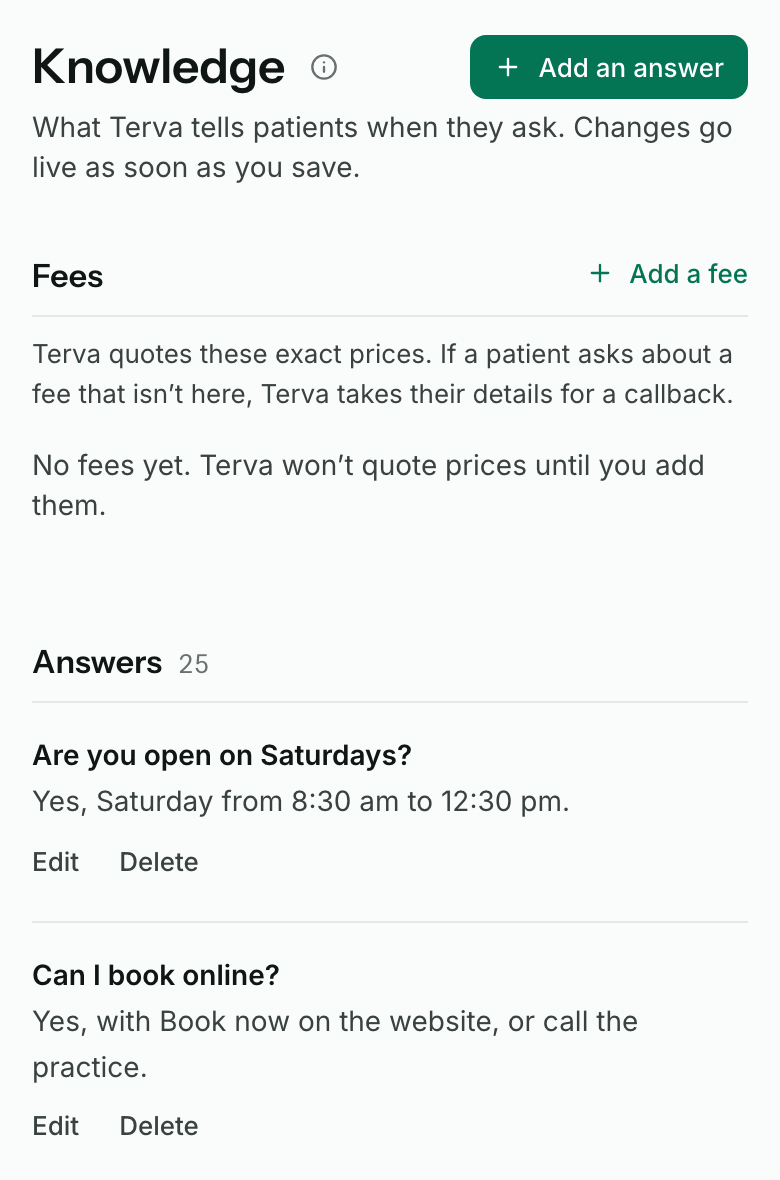
Answer what patients asked
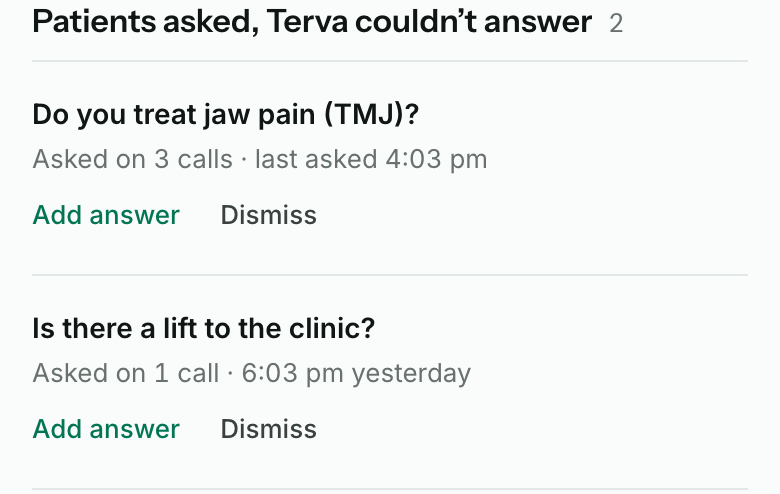
When a patient asks something Terva couldn’t answer, it shows at the top under Patients asked, Terva couldn’t answer, with how many calls asked it.
Press Add answer, write what Terva should say, then Save. Terva uses it from then on. Press Dismiss to leave it unanswered; it comes back if a patient asks again.
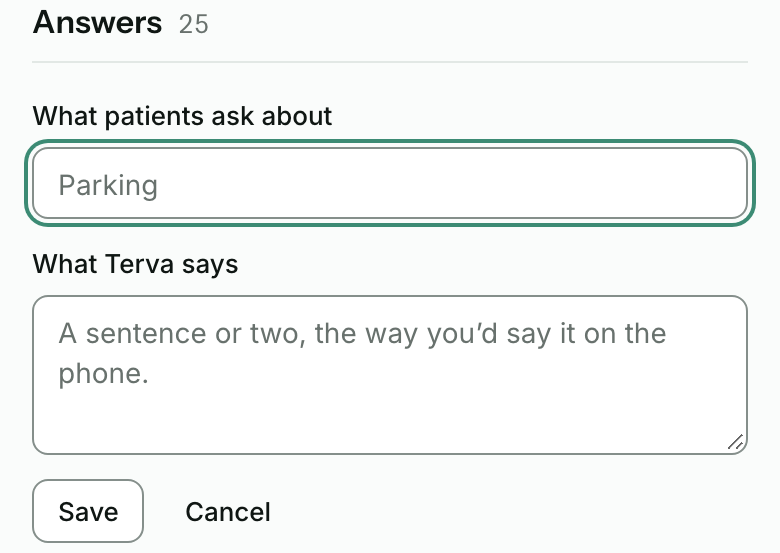
Edit or add an answer
Press Edit beside an answer, or Add an answer at the top of the page. Fill in What patients ask about and What Terva says, then press Save. Keep it short, the way you’d say it on the phone.
To remove an answer, press Delete, then confirm. Terva stops using it on calls straight away.
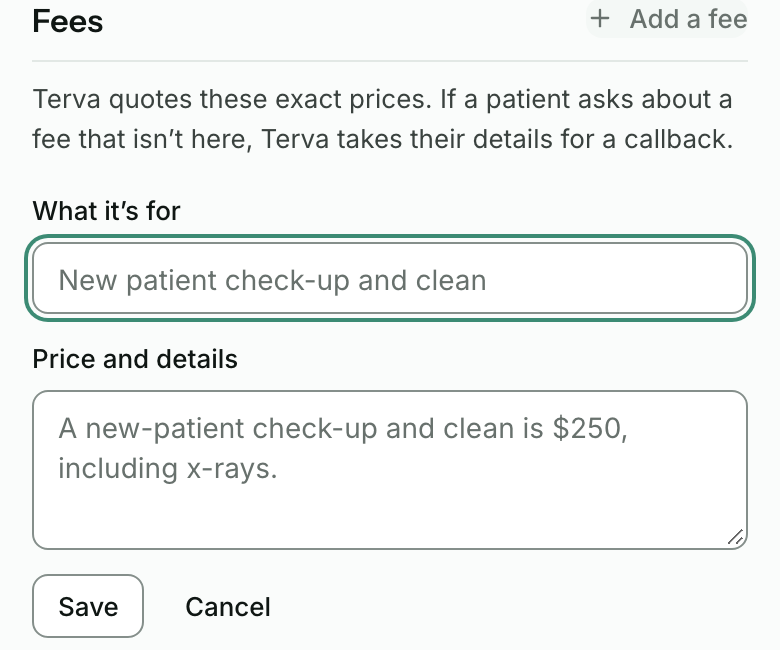
Add your fees
Terva quotes a price only if it’s under Fees. Press Add a fee, fill in What it’s for and Price and details, then Save. Terva quotes it exactly.
If a patient asks about a fee that isn’t listed, Terva takes their details for a callback.
Check your hours and address
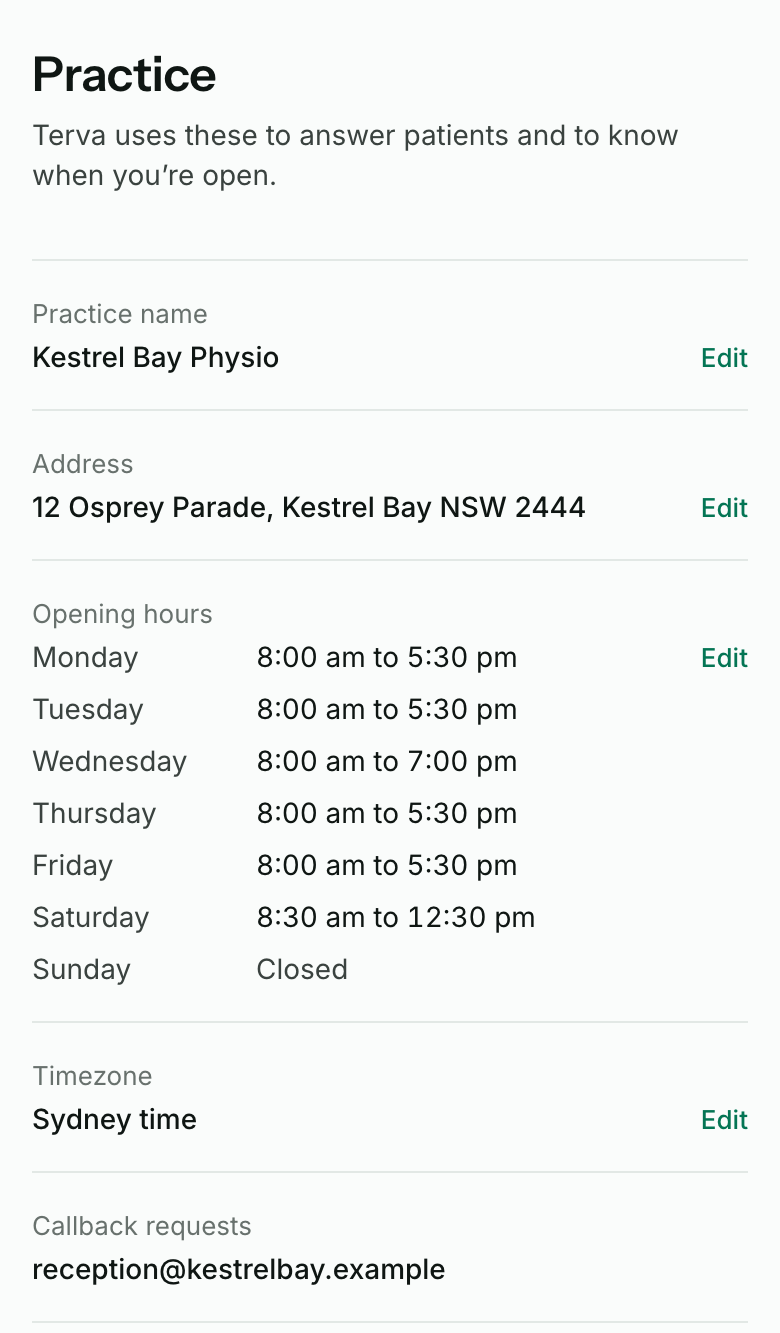
Your practice name, address, opening hours and timezone are on the Practice page, not in Knowledge. Press Edit beside one to change it.
Choose who Terva names
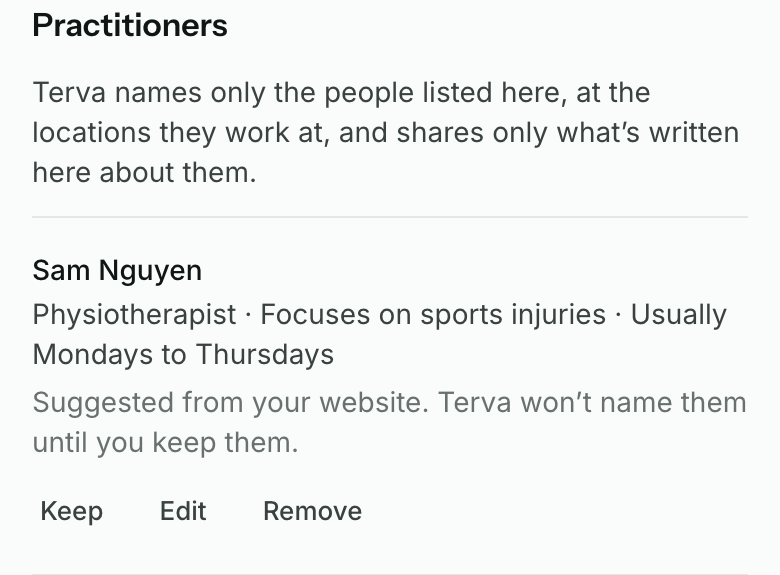
Lower on the Practice page, Practitioners lists the people your website mentions. Terva names only the ones you keep, and says only what’s written about them.
Press Keep for each person patients can ask for. Press Edit to fix their details, or Remove if they’ve left.


What you’ll see when it works
- You see Saved after each change.
- A test call gives the new answer.
- A question you answered leaves Patients asked, Terva couldn’t answer.
- Terva quotes only the prices under Fees.
If it doesn’t
- Terva still gives the old answer
- Check for another answer that says something different, and edit or delete it. Then make a test call and ask again.
- You see “Saved. Refresh to see it.”
- Your change is saved. Press Refresh to see it on the page.
- There’s no Edit or Add an answer button
- Only the practice owner can change Knowledge and Practice. Your team can read them.
- Terva won’t quote a price
- Add it under Fees (step 4). Terva doesn’t quote prices from anywhere else.
- Your hours or address are wrong
- Change them on the Practice page (step 5).
Stuck on a step?
Book a set-up call and we’ll go through it with you.