Make your first test call
Ring Terva yourself before patients do. A test call runs in your browser, takes a few minutes, and shows you what your team would get.
Not working? See what to doOpen the test call
In setup, it’s the last step: press Save and try a call.
Later, open Talk to Terva from your dashboard. It’s at the bottom of the menu, or the round button at the top on a phone or tablet.
Use a laptop or phone with a microphone. Press Start test call, and allow the microphone when your browser asks.
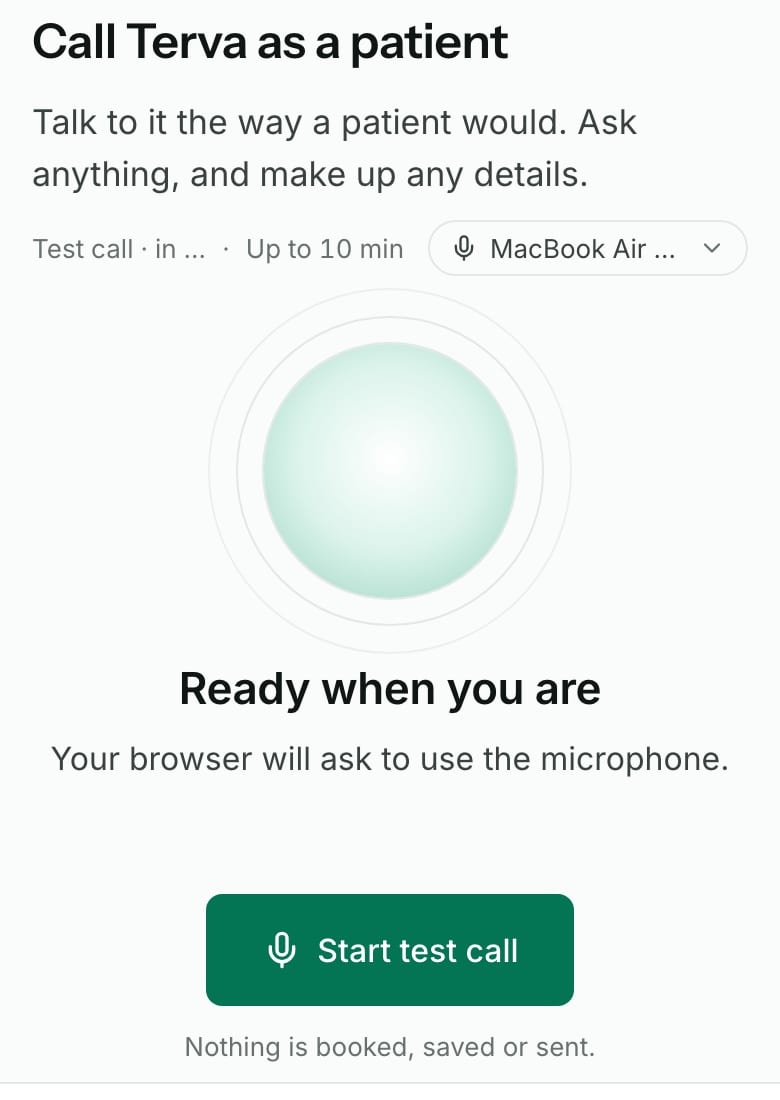
Talk like a patient
Ask what your patients ask: your hours, where you are, what a first visit costs, or for a call back to book. Make up a name and a phone number.
Terva answers from your website and the answers you checked. A test call can last up to 10 minutes. Press End call when you’re done.
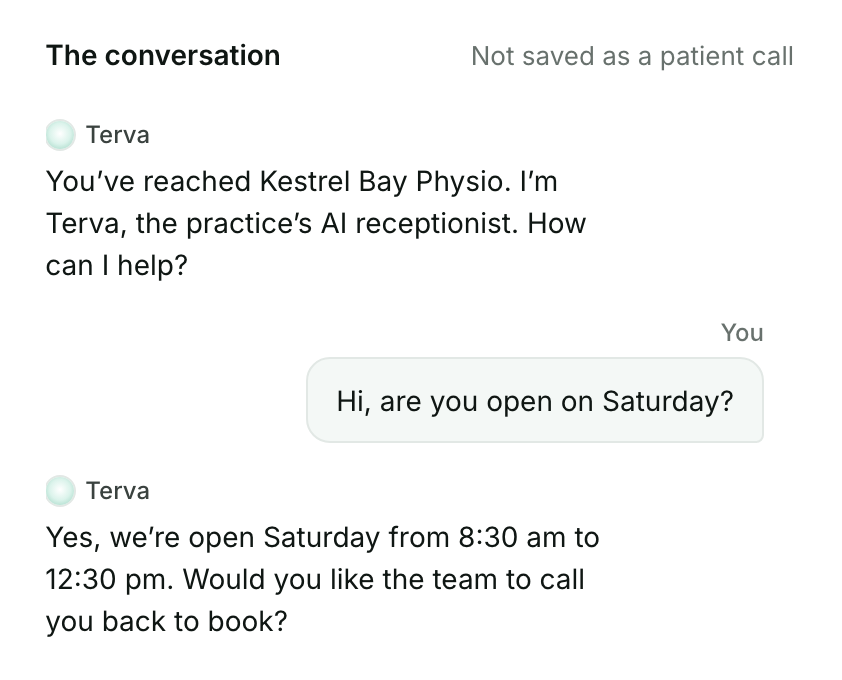
Terva answers with your practice’s name, then from what it knows. Read what your team would get
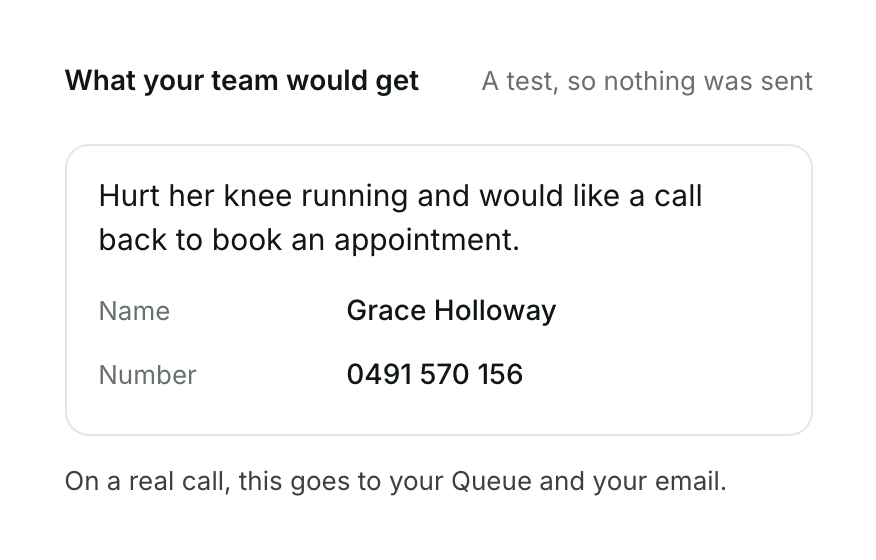
When the call ends, you’ll see Test call complete and the handover: what the caller needs, their name and number, and What was said.
A test call sends nothing. On a real call, the handover goes to your Queue and your email.
Fix a wrong answer
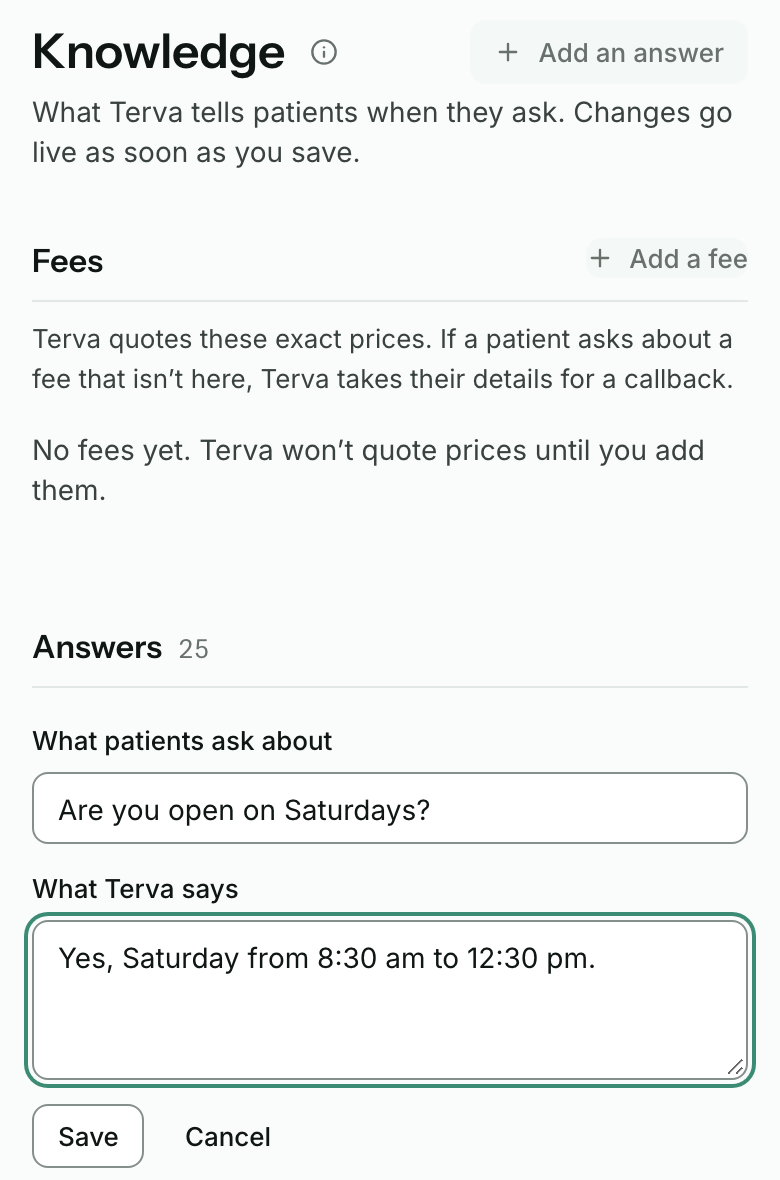
If Terva got something wrong or didn’t know, open Knowledge in your dashboard. Press Edit beside the answer, or Add an answer, then Save.
Changes go live as soon as you save. Your opening hours and address are on the Practice page. More in What Terva knows, and how to change it.
Call again
Press Call again, or open Talk to Terva, and ask the same question.
Test calls are free. They don’t use your live minutes.


What you’ll see when it works
- Terva answers with your practice’s name.
- It gives your hours, your address and the answers you checked.
- The handover says what the caller needs, with their name and number.
- The call shows in Calls as a Test call.
If it doesn’t
- Your browser blocked the microphone
- Allow the microphone in your browser’s site settings, then press Start test call again.
- No microphone found
- Plug in a headset, or use a laptop or phone with a built-in microphone.
- We can’t hear you
- Check your microphone isn’t muted, or choose another one from the microphone menu above the call.
- Test calls aren’t available yet
- Read the line under it. If it asks you to publish your answers, do that, then try again. If test calls are switched off for now, everything you’ve set up is saved: try again later.
- Another test call is still open
- Only one test call runs at a time. Wait a minute, then try again.
- Terva said something wrong
- Fix the answer in Knowledge (step 4), then call again.
Stuck on a step?
Book a set-up call and we’ll go through it with you.